
Dashboard · photos and assets
Photos for a post — without Photoshop or extra services
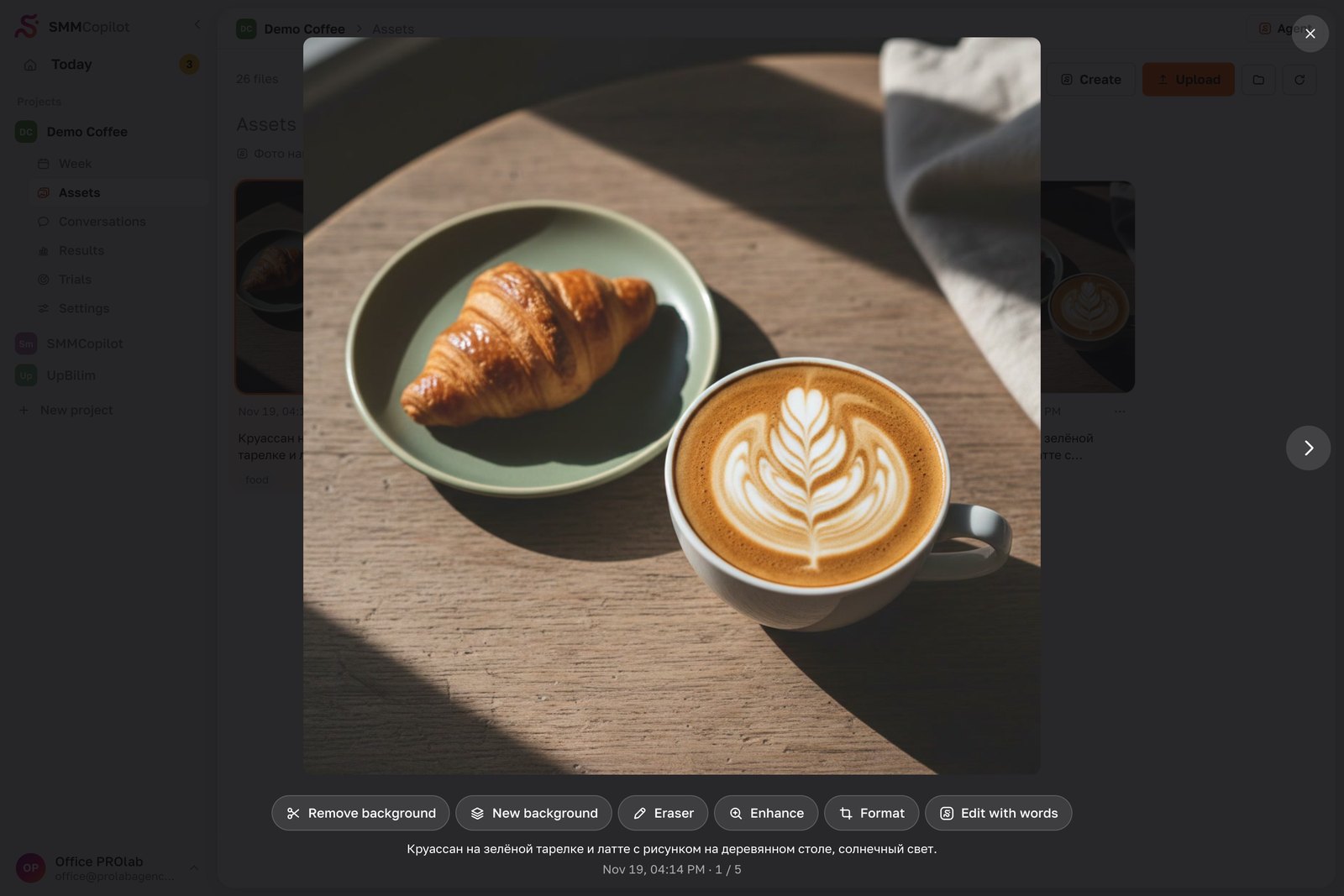
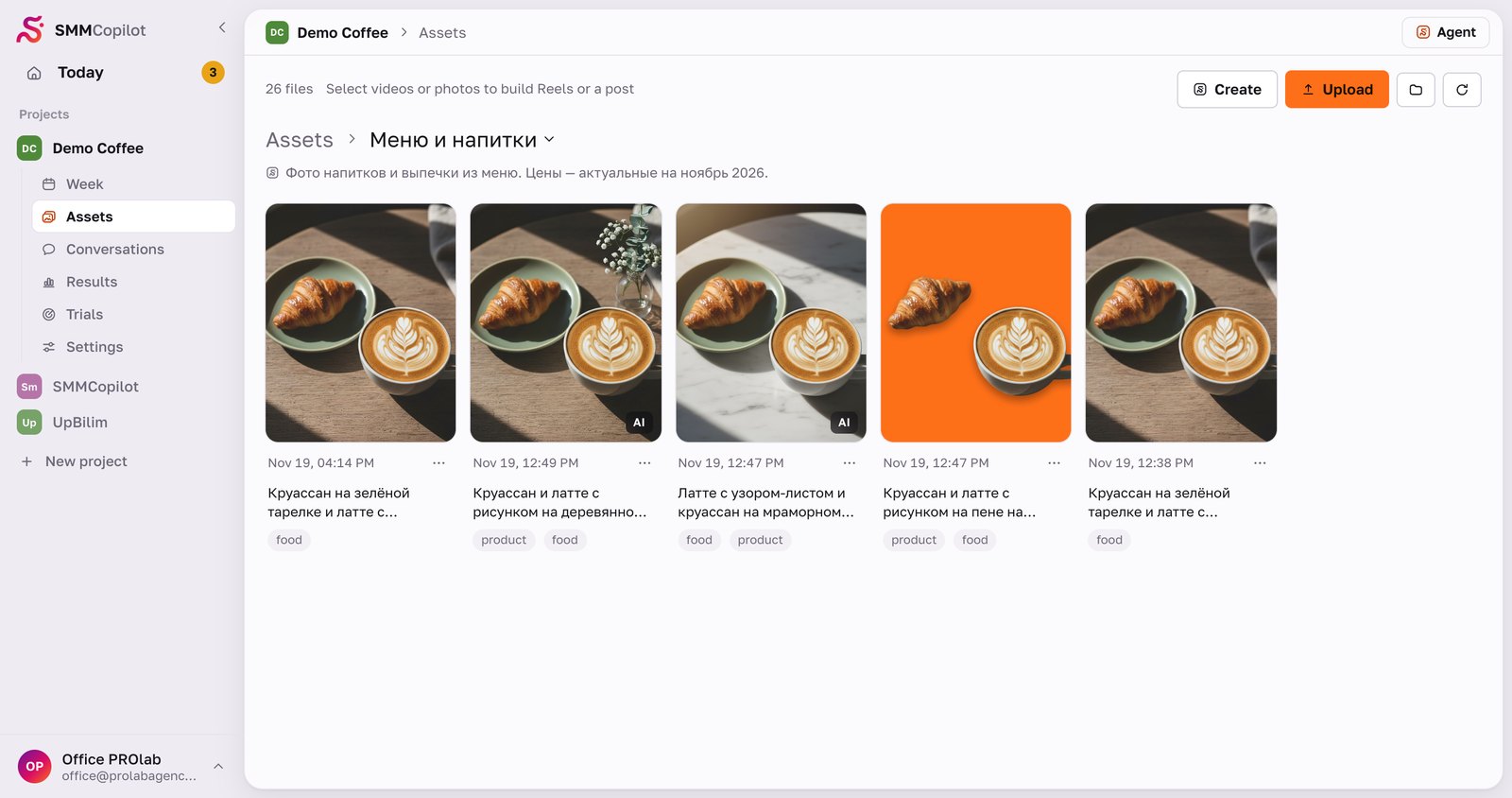
A good carousel starts with good photos. In the project’s assets every photo has a toolbar: remove background, new background, eraser, enhance, format, edit with words. The result lands as a new asset next to it, the original stays untouched. And folders with descriptions explain to the AI what the photos are — so it builds posts with more sense.
- tools on every photo — and 4 at once for 30 selected
- 6
- tools on every photo — and 4 at once for 30 selected
- to remove a background or enhance; a new scene or the eraser — ≈ 4¢
- ≈ 1¢
- to remove a background or enhance; a new scene or the eraser — ≈ 4¢
- cropping to 4:5, 1:1, 9:16 and the best frames from a video
- Free
- cropping to 4:5, 1:1, 9:16 and the best frames from a video
- is never overwritten: the result is a new asset next to it
- Original
- is never overwritten: the result is a new asset next to it
How it works
01
Folders the AI understands
Sort photos and videos into folders — up to three levels, by drag and drop. A folder has a description (“Photos of drinks from the menu, prices — November 2026”) and a rule: publish, only in case-study posts, or don’t publish. The AI knows this about every asset inside: it won’t put “internal” ones in a post and won’t strike out numbers from the description as made up.
02
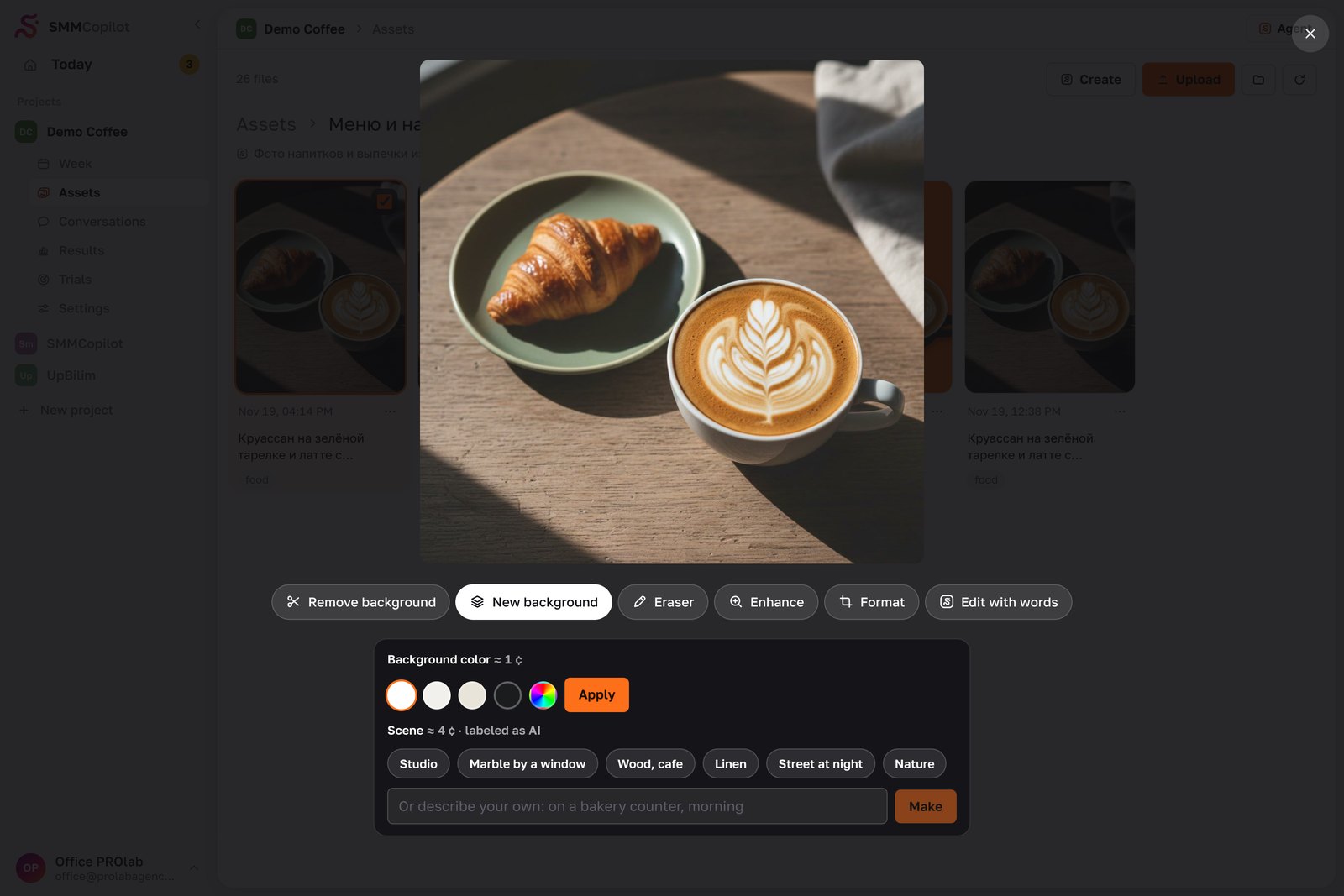
New background: brand color or a scene
With a color — the subject is cut out and placed on the brand color with a soft shadow; the subject itself isn’t redrawn, so there is no AI label. With a scene — six ready ones (studio, marble by a window, cafe, linen, street at night, nature) or your own words: the AI paints the surroundings, keeps the subject as is, and the post gets an AI label.
03
Eraser, format, quality, edit with words
Eraser — brush over the clutter and the background is filled in where it was. Enhance — a small photo becomes 2–4 times larger and sharper. Format — 4:5, 1:1, 9:16: crop around the main subject, or extend the edges if cropping would cut too much. Edit with words — “add a croissant”, “make it evening”. For videos — “Best frames”: four sharp frames from different moments.
Why it is built this way
The original stays
Every tool creates a new asset in the same folder. Don’t like it — delete the result, the original is still there.
An honest AI label
Whatever the AI painted (a scene, an edit with words, extended edges) is labelled and passed to Instagram as AI. A cutout, a background color, a crop and eraser retouching are not: the subject in the photo stays real.
The price before you press
About a cent for a cutout or enhancement, about 4 cents for a scene, the eraser or an edit with words. Cropping and frames from video are free.
Several at once
Select up to 30 photos — “Tools”: remove background, brand-color or white background, enhance, format. It runs on the server, with progress in a bar above the grid.
Asset descriptions — yours or the AI’s
Every photo is captioned on upload; correct the caption and the AI trusts yours from then on and doesn’t rewrite it.
Shared assets
The same storage is seen by the agent in the bot, the owner’s app and Claude or ChatGPT: “remove the background from the last photo” works everywhere.
For agencies
A client’s photo is post-ready in a minute
The client sends photos “as is” — from a phone, with a kitchen behind, horizontal. In a minute the manager removes the clutter, puts the brand background and a 4:5 format — and builds a carousel from the selected photos with one button. A “Portfolio → project” folder with a description gives the AI material for case-study posts.
- Project branding
- Brand colors come first in the new-background palette; the logo — in “Branding”.
- Paste from clipboard
- Ctrl+V on the tab — a screenshot or photo becomes an asset at once, text becomes a note.
- Drag and drop
- Assets onto a folder or the path crumbs, in bulk; works on Windows too.
- From assets — to a post
- Select photos → “Build a post” or “Carousel” with a hint of what to say.
Questions
- How is this better than Canva or remove.bg?
- The photos already live in the project, and the result goes straight into the posts and carousels SMMCopilot builds and publishes. No downloading, uploading to another service and bringing it back.
- Will it cut out the plate too?
- The cutout model picks the main subjects; secondary things (a plate, a napkin) sometimes go with the background. You see the result right away — if it doesn’t fit, delete it.
- Is a new background labelled as AI?
- A background color — no (the subject doesn’t change). A new scene, an edit with words and extended edges — yes, with an AI label on Instagram.
- Does it work for videos?
- For videos there are “Best frames” and “This frame” from the paused moment — full-size photo assets. The video background isn’t changed.
- What do folders do for the AI?
- The AI reads a folder’s description as context about all its assets; the “don’t publish” rule keeps it from taking them into posts by itself. What the team picks by hand is used.
- How much space?
- 5 GB per project for free, then 10 credits per GB a month. Each project’s size is in “Workspace settings”.
Nearby
A client’s photo — straight into a post
Background, format and quality right in the project’s assets, and the built post goes out on schedule. Write to us and we’ll connect the first project.